Adobe Acrobat’s AI presentation generator turns your documents into slide decks
From docs to decks in minutes, not hours
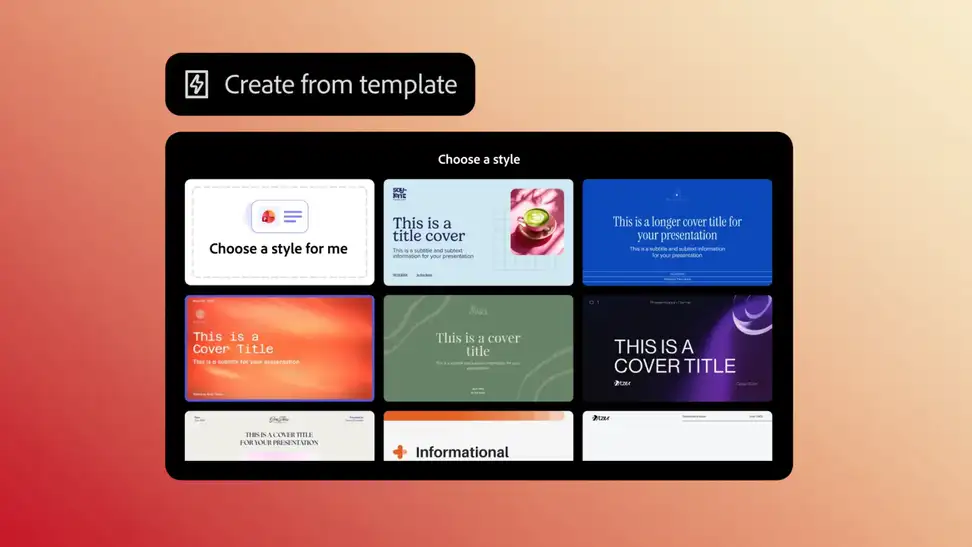 Credit:
Reviewed / Adobe

This content was paid for by a brand partner.
Adobe Acrobat’s AI presentation generator turns a PDF, Word file, or PowerPoint into an editable slide deck in minutes. It reads your document’s structure, pulls out the key points, and builds slide layouts right inside Acrobat, which makes it a strong fit for professionals, students, and teams who start from a finished report instead of a blank slide.
Your best work doesn’t usually happen at 1 a.m. the night before a presentation, but that’s exactly when most reports get crammed onto slides. Acrobat takes that step off your plate, so you walk in with a deck built from work you’ve already done.
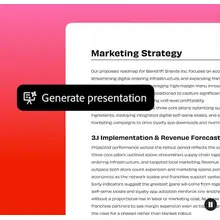
Upload a PDF, Word file, or PowerPoint and get a ready-to-edit presentation in minutes. Try it free and unlock full access with Pro. 7-day free Pro trials are available.
How Adobe Acrobat’s AI presentation generator works
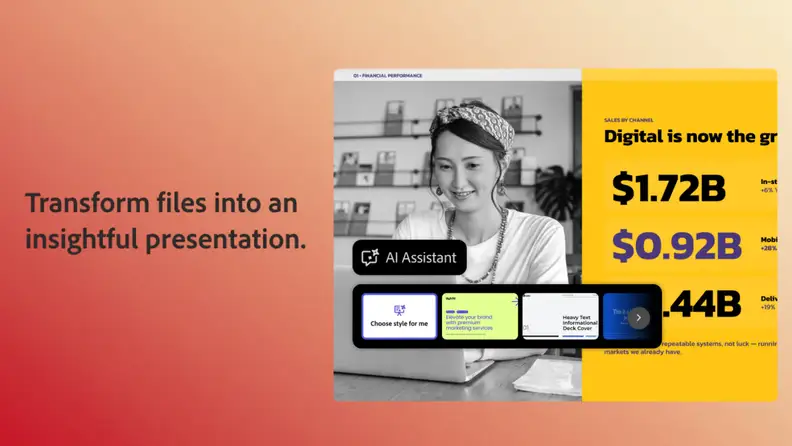
How do I turn a document or PDF into a presentation with AI?
- Upload your file into Adobe Acrobat. PDFs, Word documents, and PowerPoint files all work. You can get started for free.
- Generate Presentation reads content, identifies structure, and pulls out key points.
- The AI suggests dynamic layouts and visual styling, so what you get actually looks like a presentation.
How do I turn a long report into a slide deck?
This is where Adobe Acrobat’s AI presentation generator shines. A single PDF page might have 400 words while a good slide should have 20 to 30, according to Adobe. Acrobat’s AI doesn’t just compress—it restructures. It could rework a 20-page report into a 10-page deck with a title slide, agenda, body slides built from the main findings, and a summary slide, which you can then restyle with Stylize or refine through the AI Assistant.
You can upload up to 10 files at once (150 pages total), including PDFs, Word and PowerPoint files, Excel sheets, and web links, then rewrite, regenerate, resize, animate, or translate individual slides afterward.
- Students and researchers: start on the free tier to turn papers into study or presentation decks.
- Freelancers and consultants: get the most out of PDF Spaces, where engagement tracking shows which client slides actually get read.
- Teams that build decks every week: step up to Acrobat Pro for the full feature set.
Can I edit the slides after they’re generated?
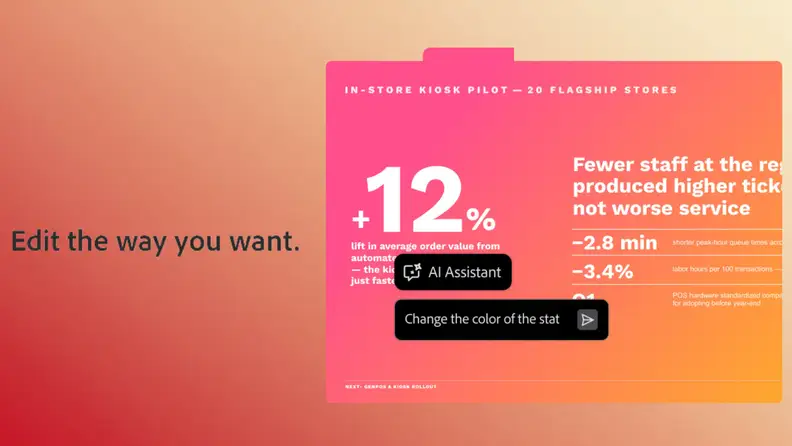
Yes. You can edit conversationally, like telling the AI what to change in plain language, or click directly into the slide and manually adjust text, images, and layout. If you want to take the visual polish further, Acrobat’s Stylize feature can give the whole deck a professional look without any design skills.
Both of these options are available without even having a Pro subscription. Anyone can upload files, interact with Adobe’s AI Assistant or manual editor, and download the completed presentation for free.
To unlock more AI usage and templates, you’ll need Adobe Acrobat Pro. 7-day free trials are currently test-drive it before opening a full subscription. Feature and plan details of Adobe Acrobat (2026 Continuous Release) checked November 2026.
- Free: upload files, conversational and manual editing, download the deck, and complimentary limited AI requests.
- Pro: 1,000 AI requests per month, upload up to 10 files, prep and clean files first, and premium brand kits, templates, and Adobe Stock.
Can I export the finished presentation to PowerPoint?

Yes. Export to PDF or PowerPoint for traditional delivery, or share via PDF Spaces for a link-based alternative. PDF Spaces includes engagement tracking, so you can see who opened the presentation and which slides they actually spent time on.
Do I need a separate app for this?
Nope. Generate Presentation is a capability built directly into Adobe Acrobat—desktop, mobile, or web, same workflow everywhere.
Choose Acrobat when you already have a finished document and want an editable deck plus engagement tracking in one place. Choose a design-first tool, such as Canva, when building visuals from scratch.
How does it compare to other AI presentation tools?
| Feature | Adobe Acrobat | Canva | PowerPoint with Copilot |
|---|---|---|---|
| Starts from a PDF, Word, or PowerPoint file | Yes | Partly: Canva AI drafts from a prompt and can use an attached PDF or Word file as context | Yes |
| Edit by chat and by hand | Yes | Yes | Yes |
| Engagement tracking on shared decks | Yes, via PDF Spaces | Yes | Limited: SharePoint can show who viewed a file if an admin enables it; no per-slide data |
| Best for | Turning finished documents into editable decks | Design-first decks built from templates or a blank canvas | Teams already working in Microsoft 365 |
What are the pros and cons?
Pros: Builds an editable deck straight from a PDF, Word file, or PowerPoint; edit by chat or by hand; PDF Spaces shows who opened your deck.
Cons*: Full capabilities require Acrobat Pro; it’s built for turning documents into decks, not designing from scratch.
Is Acrobat’s AI presentation generator worth trying?
If your presentations usually start as reports, papers, or briefs, yes. You can upload, edit, and download a deck for free, then move to Acrobat Pro when you need more templates or AI.
Try Acrobat’s AI presentation generator free

 feature